Period locking
The Define Period Locking page allows you set dates after which the import or input of specific types of data will be disabled. When you lock a period, it restricts any modifications to the selected data type for that period across all companies within the group.
Note: Administrators and Consolidators can modify locked data types after the period lock date has commenced.
Six different data types are available for locking:
-
Closing Amounts
-
Intercompany
-
Flows
-
Intercompany Flows
-
Analytical Dimensions
-
Adjustments
To access the Define Period Locking page, click  Group > Periods > Define Period Locking.
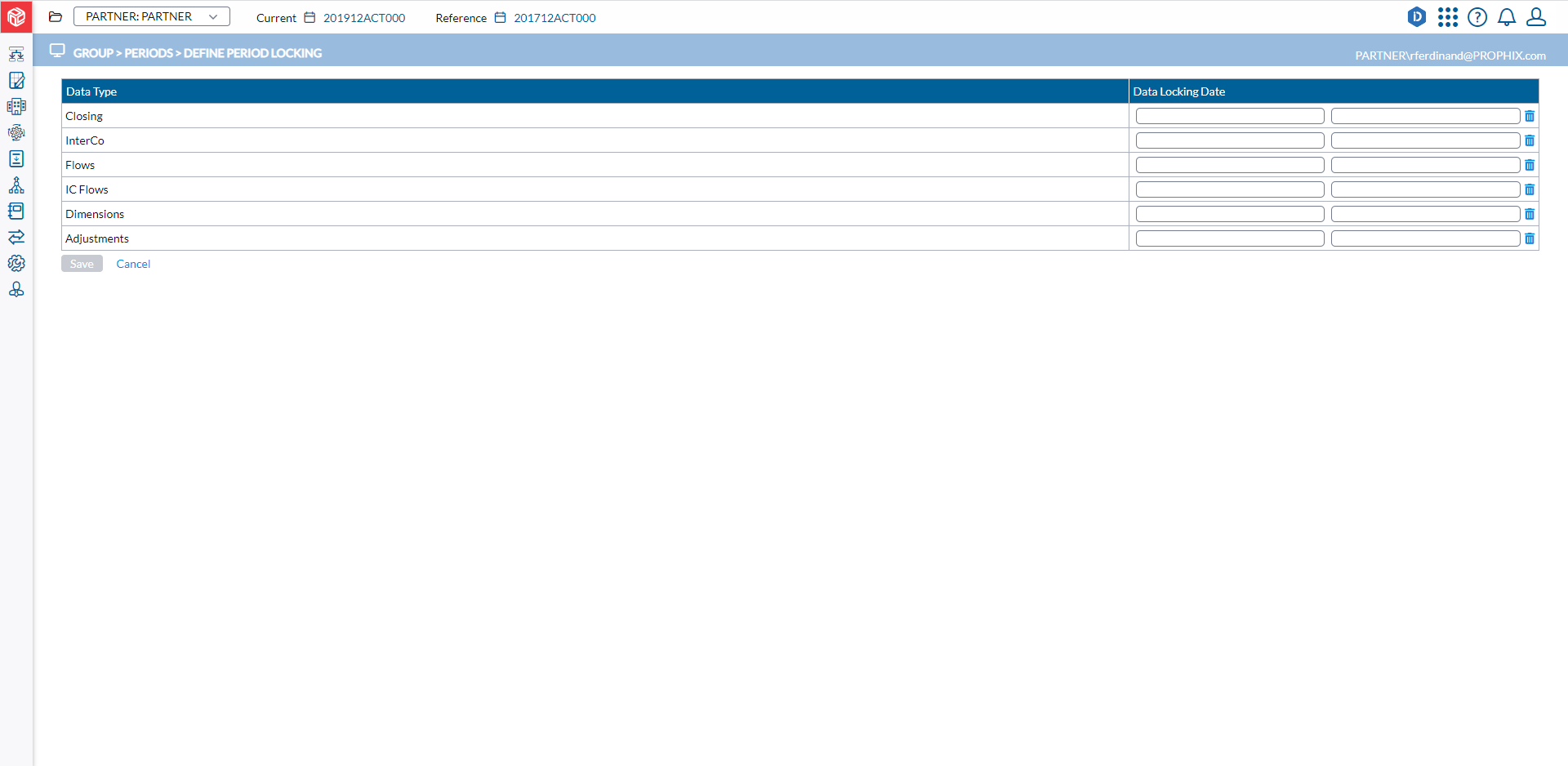
Lock data
When data is locked, it is locked for all companies in the group and prevents changes to selected data type for that period.
Note: Locking data type is different from when an administrator locks a period. When an administrator locks a period, all data types are locked for that period for all companies.
-
Access the Define Period Locking page.
-
In the data row you want to lock, click in the Data Locking Date field to specify a date. If a date is not specified, the data type will be available as long as the period is open.
-
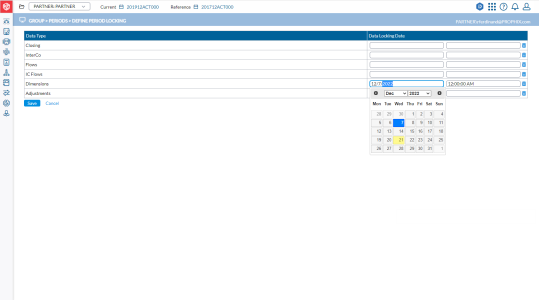
From the pop-up calender, select a date. When you select a date, the default time of 12:00 AM appears in the time field. To change the default time, click in the field and enter a new time.
-
Optionally, select another data type and enter a lock date. You may enter a different lock date for each type of data.
-
Click
 . On the set date, import or input of the locked data types is disabled in that period.
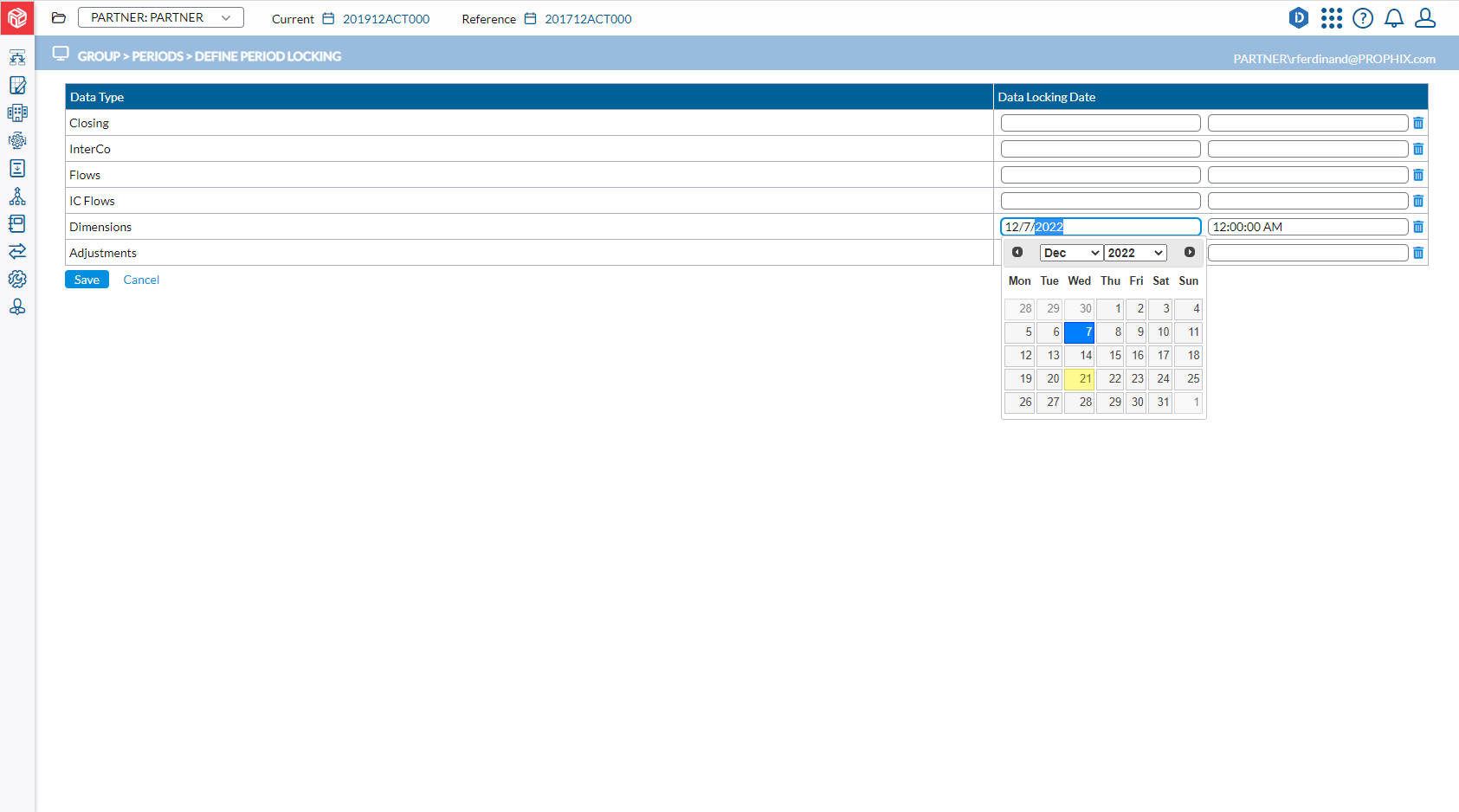
Unlock data
-
On the Define Period Locking page, click the data you want to unlock.
-
In the Data Locking Date field, click
 to clear the lock date.
 -
Click
.